Table of Contents
When a laptop, server, or storage drive reaches end of life, most teams simply focus on getting rid of the devices. But there’s a step that comes first, and skipping it can cost you critical data forever: a complete, verified backup.
Once a device leaves your facility for recycling or destruction, whatever lives on it is gone; if that data wasn’t copied and confirmed beforehand, you don’t get a second chance. That’s why solid data backup best practices are the foundation of a safe, compliant recycling process.
Here’s how to back up the right way before any device is retired, and what to do next to keep that data secure.
Why You Should Back Up Before You Destroy Data
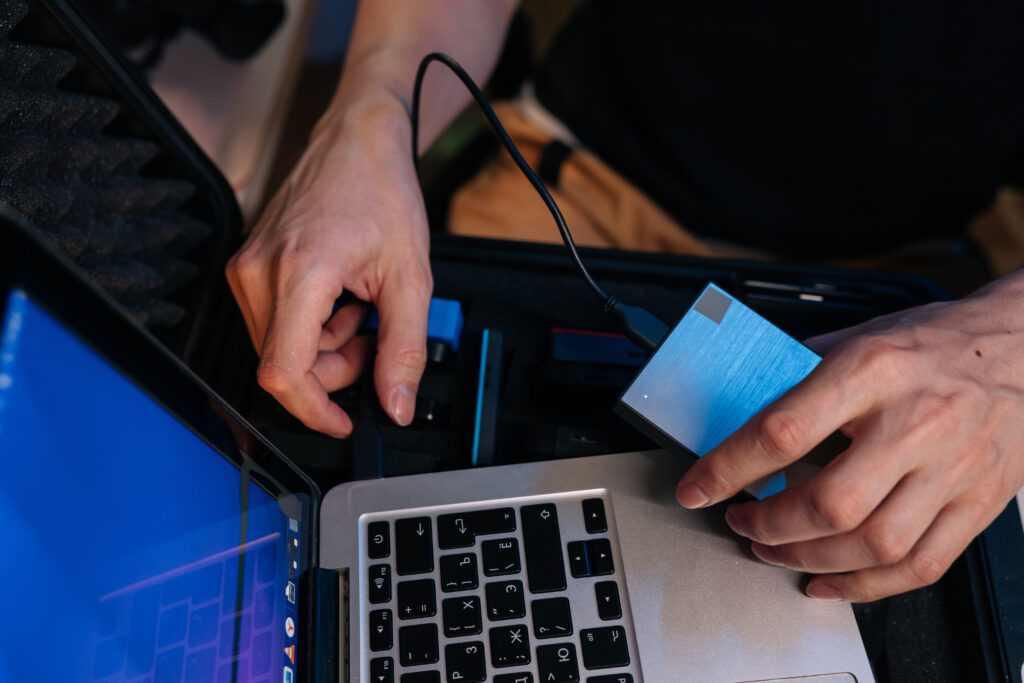
Old machines frequently hold the only copies of licensing keys, configuration files, historical logs, project archives, or credentials your team may still need. If you choose to destroy the data first, you’ll lose the chance to recover any of it.
A disciplined backup process protects you from:
- Permanent data loss from prematurely wiped or shredded drives
- Compliance gaps when records required for audits aren’t preserved
- Operational disruption when a retired device held something no one documented
Which Devices May Contain Data?

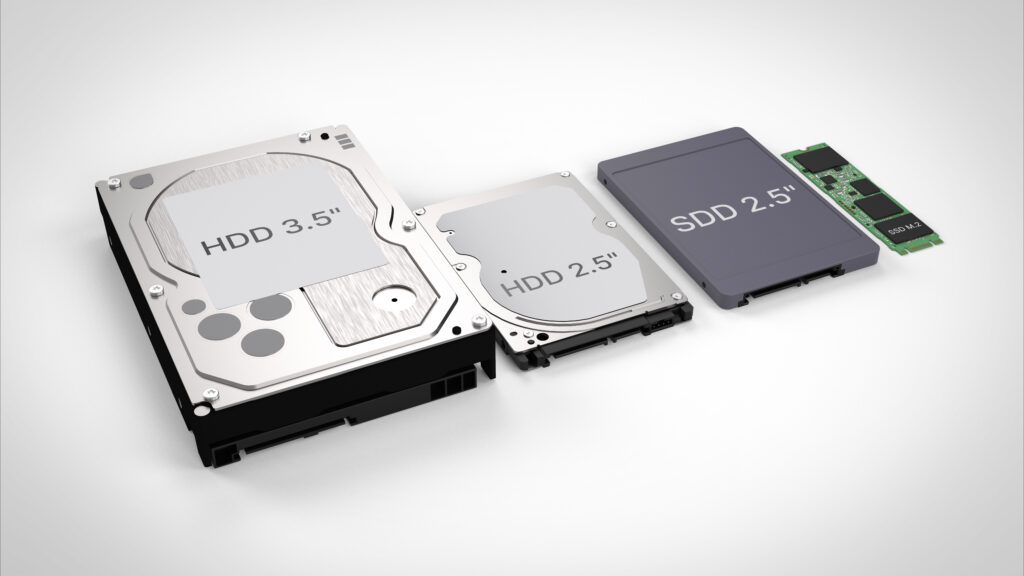
It’s not just laptops and desktops; data can live on far more devices than most teams realize, and each one needs a backup before it’s retired.
Common data-bearing devices include:
- Laptops, desktops, and servers
- Phones and tablets
- External hard drives, USB drives, and memory cards
- Printers, copiers, and scanners
- Network equipment, including routers, switches, and firewalls that store configuration data and credentials
Before recycling anything, check every device that may have stored information. Or, contact AIT today to check all of your devices for data-bearing media on-site prior to data destruction and e-waste recycling, for convenience and peace of mind.
The 3-2-1 Rule: Your Backup Baseline
The 3-2-1 rule is the gold standard for backup reliability. It entails keeping:
- 3 total copies of your data: one primary and two backups
- 2 different media types: for example, a local NAS and cloud storage
- 1 copy offsite: physically separated from your primary location
The logic is straightforward: multiple copies protect against corruption, different media protect against hardware-specific failures, and an offsite copy protects against fire, theft, or a site-wide outage. No single event should ever take out every copy at once!
For high-value or regulated data, many teams extend this to a 3-2-1-1-0 approach, adding two more requirements covered below.
Add an Immutable or Offline Copy

Backups only help if they survive the threats aimed at your primary systems. Ransomware, in particular, targets connected backups to force a payout.
Protect at least one copy by making it:
- Immutable: written once and locked so it can’t be altered or deleted for a set retention period
- Offline (air-gapped): fully disconnected from your network, like a rotated tape or detached drive stored securely
This layer is your insurance policy; even if attackers reach your live environment, an immutable or offline copy stays clean and recoverable.
Verify Every Backup: Aim for Zero Errors

A backup you’ve never tested is a guess, not a safeguard. Backups fail quietly all the time through silent corruption, incomplete jobs, or misconfigured schedules, and you often don’t find out until you desperately need a restore that doesn’t work.
Build verification into your routine:
- Run test restores regularly, not just backups, to confirm files open and systems boot
- Check integrity with checksums or built-in validation tools
- Review backup logs and resolve every warning or error before signing off
- Target zero backup errors as the standard, verified through actual testing
Treat a backup as complete only after you’ve proven you can restore from it. Anything less leaves your data at risk right when a device is about to be destroyed.
Cloud vs. Local Backup: Choosing the Right Mix

The strongest backup setups use both, which conveniently satisfies the “two media types” part of the 3-2-1 rule.
Local backups (NAS, external drives, on-prem servers)
- Fast restores and full control over your data
- No recurring subscription costs
- Vulnerable to local disasters, theft, and hardware failure
Cloud backups
- Built-in offsite protection and easy scalability
- Accessible from anywhere, ideal for distributed teams
- Dependent on bandwidth, with ongoing costs and provider trust considerations
For most organizations, local storage handles rapid recovery while the cloud covers your offsite requirement. It’s best to match the balance to your recovery time needs, data volume, and budget.
Automate Your Backups

Manual backups depend on people remembering to run them. Under pressure, they might get skipped, and gaps will appear exactly when you can least afford them.
Automation removes that risk:
- Schedule backups at consistent intervals matched to how often your data changes
- Enable automatic alerts so failed jobs get flagged immediately
- Set retention policies to manage storage and meet compliance timelines without manual cleanup
Set it up once, monitor the reports, and your data gets protected reliably in the background, with no reliance on memory or last-minute effort.
After the Backup: Secure Data Destruction
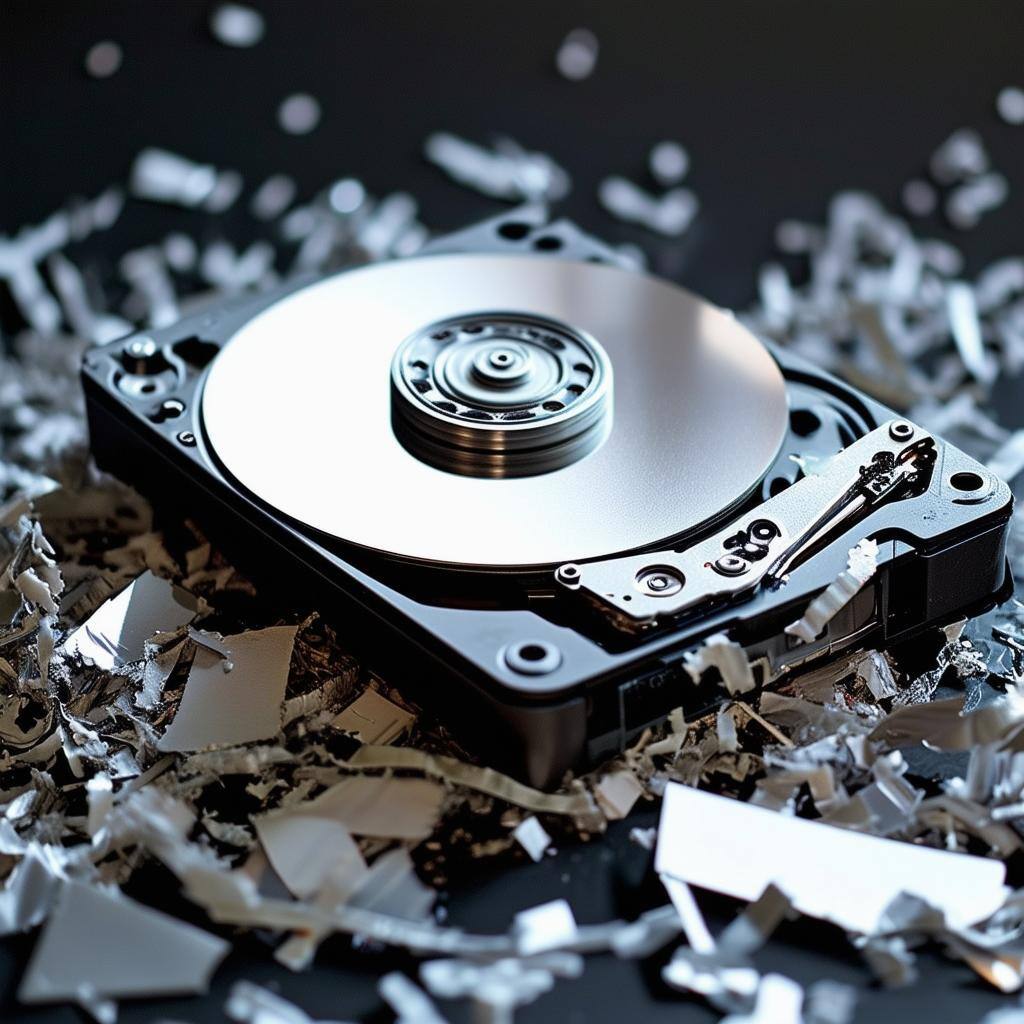
Once your data is copied, verified, and safely stored, data lingers on drives long after it appears gone, making improperly discarded hardware a leading source of breaches and failed audits.
That’s why secure data destruction is the mandatory next step. Every data-bearing device should be sanitized to recognized standards before it leaves your control:
- Certified data destruction compliant with NIST SP 800-88, IEEE 2883-2022, and DoD 5220.22-M
- Full documentation including a serialized Certificate of Destruction for audit-ready proof
- Chain-of-custody tracking from pickup through final processing
- Responsible recycling compliant with R2v3 and e-Stewards standards
Backup what you need to keep and destroy what you need to get rid of. Together, they close the loop on a secure hardware retirement process.
Retire Your Hardware the Right Way with Data Destruction and Data Backup Best Practices
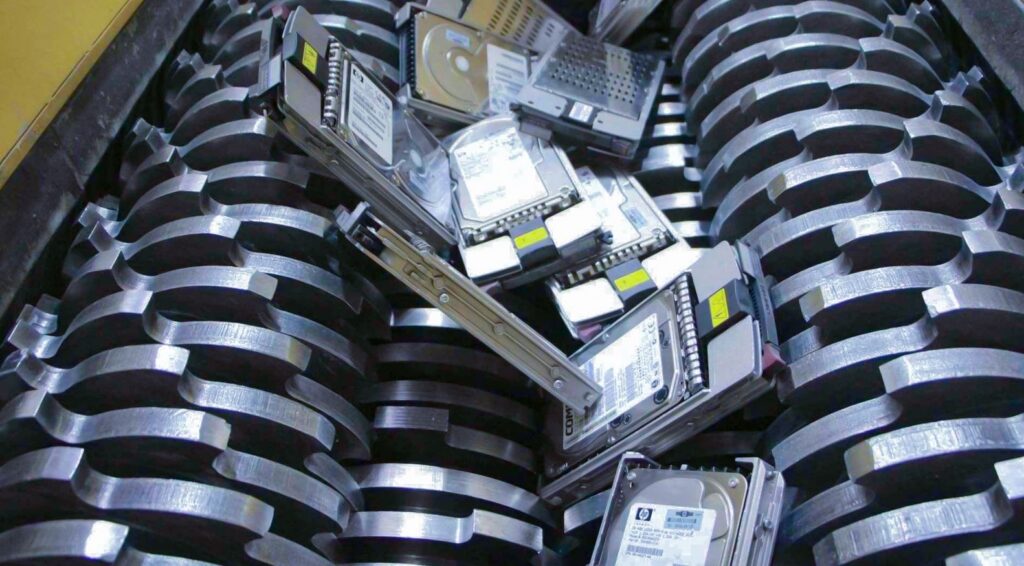
Back up completely, verify thoroughly, then destroy securely: that sequence keeps your data recoverable, your compliance intact, and your retired devices free of anything that could come back to haunt you.
Once your backups are confirmed, let AIT handle the rest. Our certified data destruction and full-service ITAD solutions ensure every retired device is sanitized to the highest standards, fully documented, and responsibly recycled, with the value recovery and audit-ready proof your organization needs.
Ready to retire hardware without the risk? Schedule a secure pickup with AIT now and put your data destruction in expert hands today.